

Introduction
Many Microsoft 365 administrators are familiar with mailbox quota issues, but fewer realize that archive mailboxes can also reach their limits.
A common scenario is a user with a Microsoft 365 E5 license whose Online Archive mailbox is approaching 100% utilization. Administrators often assume they can simply increase the archive quota through PowerShell, only to discover that Exchange Online works differently.
In this article, we’ll explain:
- How Exchange Online Archive Mailboxes work
- What Auto-Expanding Archives are
- Why the archive quota still shows 110 GB after enabling Auto-Expanding Archives
- How to enable Auto-Expanding Archives using PowerShell
- Whether automatic archiving can be triggered based on mailbox size
- Best practices for long-term mailbox management
Understanding Exchange Online Archive Mailboxes
Exchange Online provides users with an Online Archive mailbox that serves as an extension of their primary mailbox.
For Microsoft 365 E5 users:
| Feature | Value |
|---|---|
| Primary Mailbox | 100 GB |
| Archive Mailbox | 110 GB |
| Auto-Expanding Archive | Supported |
| Maximum Archive Capacity | Up to 1.5 TB |
The Online Archive appears in Outlook as a separate mailbox tree and allows organizations to store older email without consuming primary mailbox space.
The Problem: Archive Mailbox Nearing Capacity
Administrators often encounter users whose archive mailbox is nearly full.
Example
A mailbox may show:
- Archive Usage: 108 GB
- Archive Quota: 110 GB
- Archive Warning Quota: 100 GB
At this point, administrators typically ask:
“Can I increase the archive quota using PowerShell?”
The answer is:
No.
Microsoft does not allow administrators to manually increase archive quotas in Exchange Online.
What Is Auto-Expanding Archive?
Auto-Expanding Archive is a Microsoft feature that automatically adds additional archive storage when the archive mailbox approaches its limit.
Instead of increasing the visible archive quota, Exchange creates additional hidden archive storage behind the scenes.
Conceptual Architecture
Primary Mailbox
      |
      v
Online Archive (110 GB)
      |
      v
Hidden Archive Storage
      |
      v
Additional Hidden Storage
      |
      v
Up to 1.5 TB Total Capacity
The user sees a single archive mailbox, while Microsoft manages the additional storage automatically.

How to Enable Auto-Expanding Archive
Step 1 – Connect to Exchange Online
Connect-ExchangeOnlineStep 2 – Verify Organization-Level Configuration
Get-OrganizationConfig |
Format-List AutoExpandingArchiveEnabled
Expected output:
AutoExpandingArchiveEnabled : TrueStep 3 – Enable Auto-Expanding Archive for a Mailbox
Enable-Mailbox [email protected] -AutoExpandingArchiveStep 4 – Verify Configuration
Get-Mailbox [email protected] |
Format-List AutoExpandingArchiveEnabled,
ArchiveStatus,
ArchiveQuota,
ArchiveWarningQuota
Expected output:
AutoExpandingArchiveEnabled : True
ArchiveStatus               : Active
ArchiveQuota                : 110 GB
ArchiveWarningQuota         : 100 GB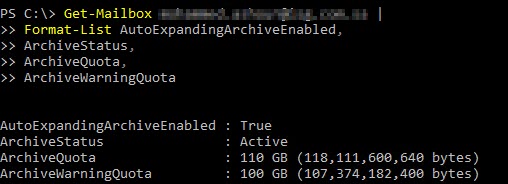
Why Does the Archive Quota Still Show 110 GB?
This is one of the most common points of confusion.
After enabling Auto-Expanding Archive, administrators expect the quota to increase immediately.
It does not.
The mailbox will continue to display:
ArchiveQuota : 110 GBThis is normal.
Microsoft adds additional storage using hidden auxiliary archive mailboxes that are not reflected in the visible quota.
The archive can continue growing even though the displayed quota remains unchanged.
How Long Does Expansion Take?
Expansion is not immediate.
Typical timeline:
| Activity | Time |
|---|---|
| Enable Auto-Expanding Archive | Immediate |
| Microsoft Detects Growth Need | Automatic |
| Additional Archive Space Provisioned | 24–72 Hours |
| Occasionally | Up to 7 Days |
No PowerShell command exists to force the expansion process.
Can Automatic Archiving Be Triggered by Mailbox Size?
Another frequent question is:
“Can I archive items automatically when a mailbox reaches 90% capacity?”
Unfortunately:
No.
Exchange Online does not support:
- Archive when mailbox reaches 90%
- Archive when mailbox reaches 80 GB
- Archive when warning quota is reached
- Archive based on storage utilization
Microsoft only supports archiving based on item age.
What Is the Recommended Approach?
Instead of size-based archiving, Microsoft recommends using Retention Policies.
Examples:
| Policy | Action |
|---|---|
| 6 Months | Move to Archive |
| 1 Year | Move to Archive |
| 2 Years | Move to Archive |
Recommended Retention Strategy
Standard Users
Move emails to archive after:
365 Days (1 Year)Heavy Mail Users
Examples:
- Finance
- IT
- Procurement
- Executive Assistants
Move emails to archive after:
180 Days (6 Months)Executives
Move emails to archive after:
730 Days (2 Years)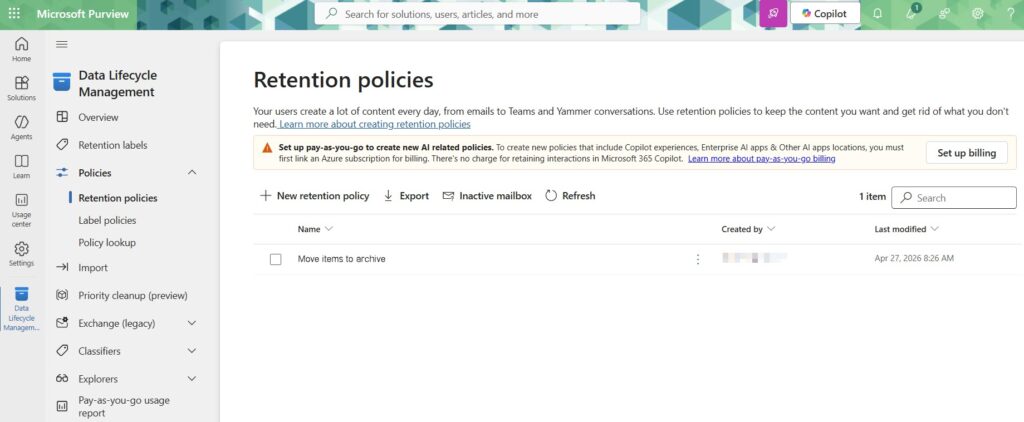
Monitoring Archive Growth
To monitor archive mailbox size:
Get-MailboxStatistics [email protected] -Archive |
Format-List TotalItemSize
Example:
TotalItemSize : 125.6 GBThis confirms that Auto-Expanding Archive is functioning, even though the visible quota remains at 110 GB.
Best Practices
Enable Auto-Expanding Archives
For all E5 users with large mailboxes.
Use Retention Policies
Move older emails automatically to archive.
Avoid Manual Cleanup
Let retention policies perform the work.
Monitor Heavy Users
Review mailbox and archive growth periodically.
Use Group-Based Policy Assignments
Assign different retention periods to:
- Standard users
- Heavy users
- Executives
Conclusion
Auto-Expanding Archives are one of the most valuable Exchange Online features for organizations with large mailboxes.
Although administrators cannot manually increase archive quotas, enabling Auto-Expanding Archives allows archive storage to grow automatically up to 1.5 TB.
The key takeaway is that archive expansion is automatic and behind the scenes. Instead of focusing on archive size thresholds, organizations should implement retention policies that archive older content based on age, ensuring a scalable and compliant email retention strategy.